Meshy 3D 7.0 AI Model Generator
Turn a written idea, a single image, or multiple views of the same object into a textured 3D model with Meshy 3D 7.0 on Hey Dream AI. Preview your result and download it as a GLB file.
Explore Meshy 3D 7.0
From a written idea, an image, or multiple views to a textured 3D model.
Meshy 3D 7.0 Examples
Explore reference images and their 3D model counterparts.
Character Concepts
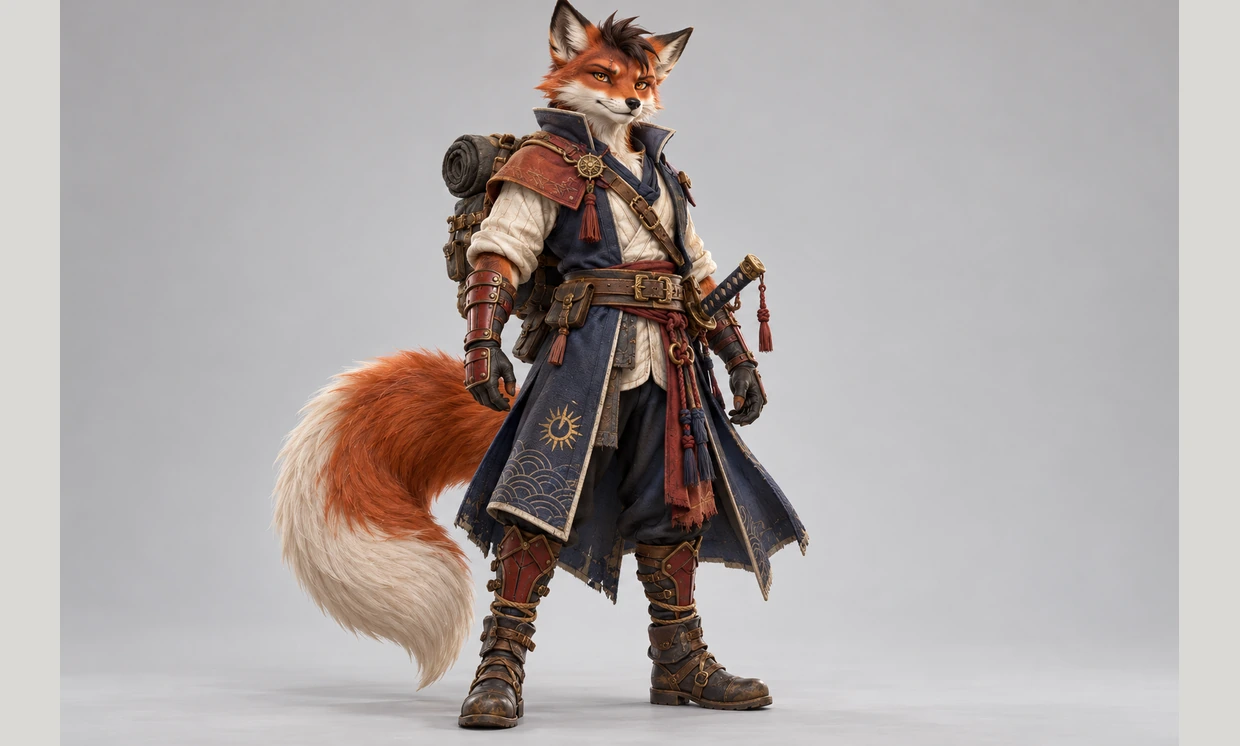
Reference Image
3D Model
Product Objects
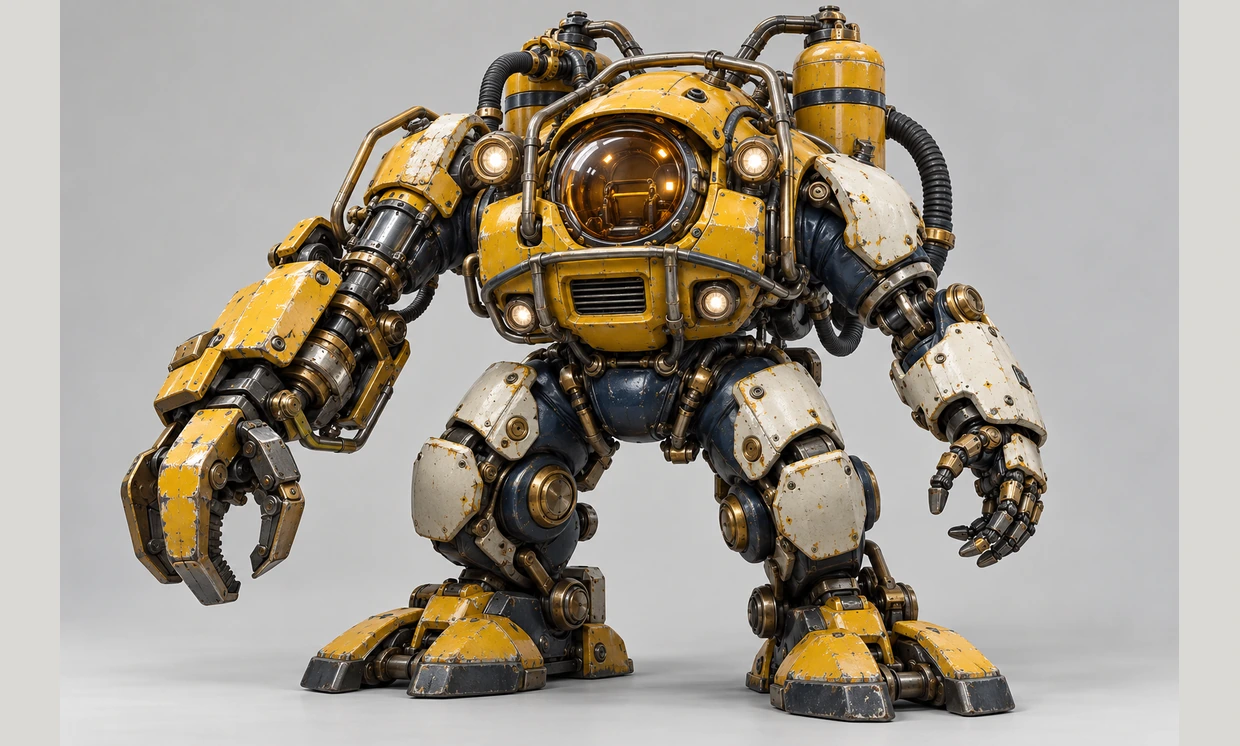
Reference Image
3D Model
Creative Props
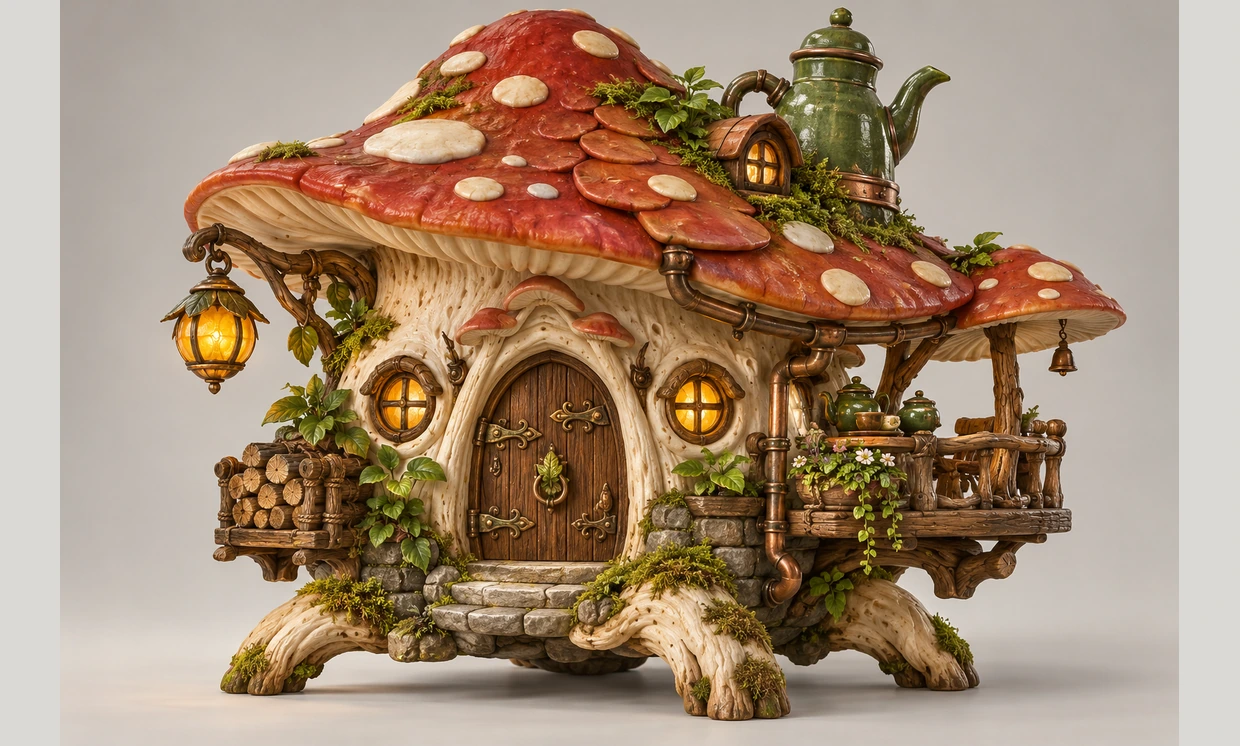
Reference Image
3D Model
Create 3D Models from Text or Images
Choose a starting point that fits your creative process.
Text to 3D
Describe an object, its shape, materials, and style to create a 3D concept from a written brief.
Image to 3D
Upload one image to guide generation. This mode uses your image without requiring a text prompt.
Multi-Image to 3D
Upload 1–4 images of the same object from different angles to guide generation. No fixed view order or text prompt is required.
Review in the 3D Viewer
Inspect the textured model in the 3D viewer and download your selected result as a GLB file.
3D Ideas for Creative Projects
Explore objects and characters before developing a finished asset.
Game Asset Concepts
Develop early ideas for props and objects for a game environment.
Product Visualization
Explore a product shape from a written brief or a clear reference image.
Character Exploration
Turn a character concept into an initial 3D form for further review.
Creative Prototypes
Generate objects for visual experiments, presentations, and design exploration.
How to Use Meshy 3D 7.0
Choose an input, generate a model, and review the result.
Choose Your Input
Describe your object, upload a single image, or add 1–4 images of the same object from different angles. Neither image mode requires a prompt.
Generate Your 3D Model
Select Meshy 3D 7.0, review your input and the cost shown in the form, then start generation.
Inspect and Download
Open your textured model in the 3D viewer, review its appearance, and download the GLB file.