Quick Summary
An AI Birthday Video Generator turns one uploaded photo into a short birthday greeting video, making it useful for family messages, friend surprises, birthday reels, team celebrations, and personalized digital gifts. With HeyDream AI's AI Birthday Video Generator, the workflow starts with a single Start Frame image and then uses AI video generation to create a warm birthday-themed clip.
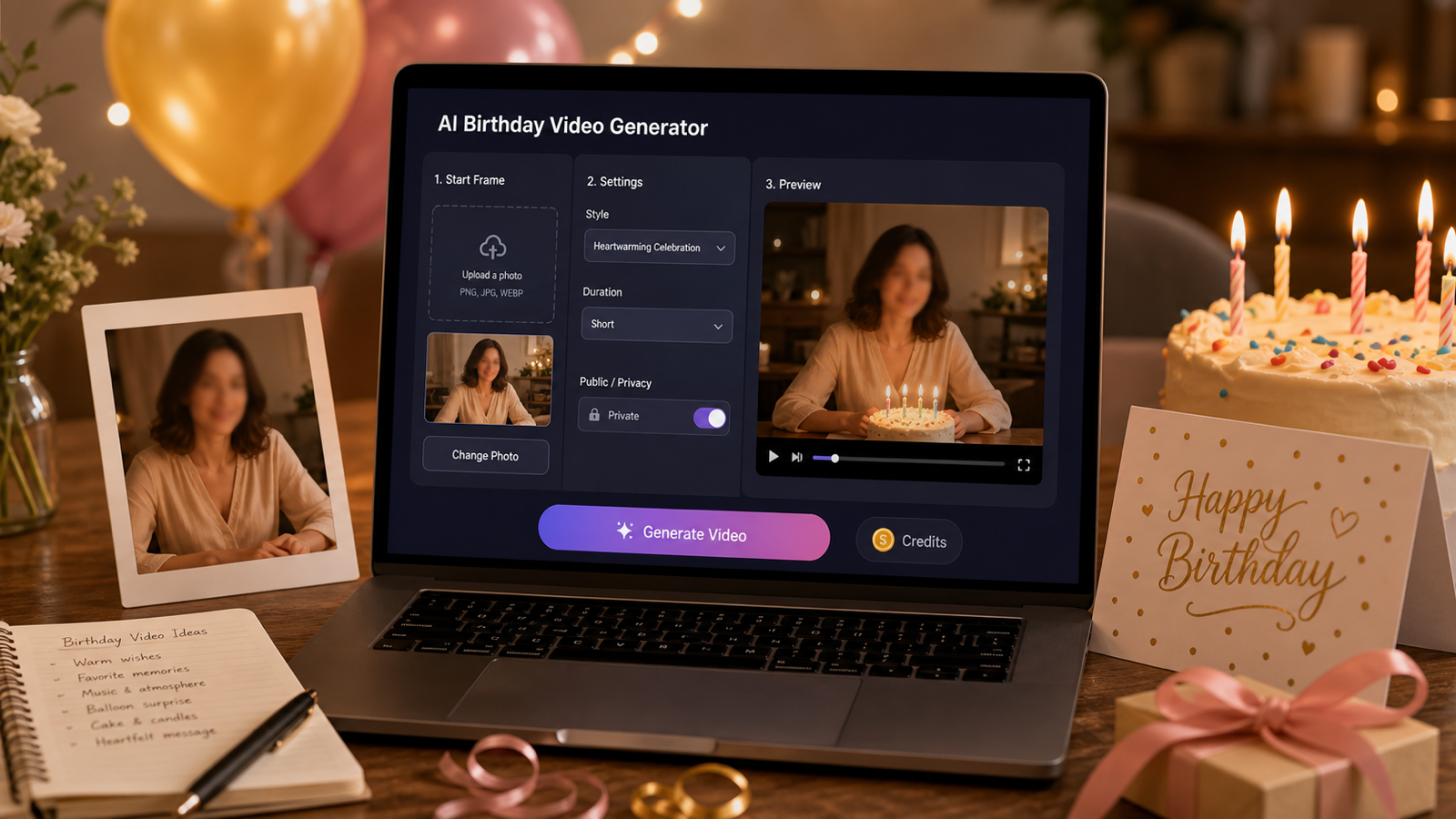
This guide explains how to use the tool, what kind of photo works best, why the Public setting matters, and how to review the visible credit cost before generating. The current interface shown for the birthday tool includes a Start Frame upload area, a Public toggle, and a Generate button with a 300-credit cue, but users should always check the live page before creating because credits, export rules, duration, aspect ratio, watermark behavior, and privacy settings can change.
Use this workflow for personal, permission-based greetings. Upload photos you have the right to use, avoid celebrity or private-person misuse, and review the result before sharing it publicly.

What an AI Birthday Video Generator Does
An AI Birthday Video Generator helps turn a still image into a short greeting video without requiring a timeline editor. Instead of manually animating a photo, adding effects, and building motion from scratch, you start with one birthday photo or themed image and let the model create a celebratory video draft.
This is useful when you want something more personal than a static "Happy Birthday" card but faster than editing a full video. A clear portrait can become a warm birthday greeting. A cake photo can become a party teaser. An old family image can become a nostalgic memory clip after light restoration.
HeyDream AI is a good fit for this workflow because it connects the focused AI Birthday Video Generator with broader tools such as Image to Video AI, AI Video Generator, TikTok Video Generator, Text to Video AI, AI Music Video Generator, and Old Photo Restorer. That makes it easier to move from a simple photo-to-video birthday greeting into reels, music clips, restored memories, or text-driven celebration scenes.
The important limit is that AI output is still a draft. It may not preserve identity perfectly, motion may look awkward, and the mood may need editing before the video feels personal enough to share.

How to Create a Birthday Video from One Photo
The easiest way to create a birthday video from one photo is to start from HeyDream AI's focused birthday page rather than a general editing tool. The page is designed for a simple start-frame workflow, so beginners can focus on choosing the right photo and reviewing the output.
Follow these steps:
- Open the AI Birthday Video Generator page. This is the focused birthday greeting workflow, not a complex multi-track video editor.
- Upload a Start Frame. Use a clear photo of the birthday person, a birthday-themed image, a cake photo, or a memory image you have permission to use.
- Check the Public setting. The visible interface includes a Public toggle, so review it carefully before uploading family photos, children's photos, client images, or private memories.
- Review the credit cost. The current visible button shows a Generate cue with 300 credits, but check the live interface because credit costs can change.
- Click Generate. Wait for HeyDream AI to turn the start-frame image into a birthday greeting video.
- Review the output. Watch for face consistency, natural motion, warm greeting mood, background artifacts, and whether the clip feels appropriate for the recipient.
- Download, edit, or share. Add captions, music, stickers, or a voice message in a separate editor if you want the final video to feel more personal.
This simple workflow works well for WhatsApp birthday messages, family group chats, Instagram Stories, TikTok, Reels, Shorts, party screens, and digital birthday cards. For social platforms, consider using a vertical crop or a photo that still looks good on mobile.

Choose the Right Photo and Check Privacy First
The photo you upload matters more than most beginners expect. A birthday video generator can add motion and celebration style, but it cannot always fix a blurry, dark, heavily filtered, or cluttered image.
Choose a photo with:
- A clear, high-resolution subject.
- Good lighting on the face or main birthday object.
- A simple background that will not distract from the greeting.
- Minimal blur, heavy shadows, sunglasses, or extreme filters.
- One main person if the video should focus on a specific birthday recipient.
For group photos, use care. If the output should focus on one person, a group image may make the model split attention across faces or animate the scene in a less predictable way. For older family photos, consider using Old Photo Restorer first, then trying the restored image in an image-to-video workflow.
Privacy is just as important as image quality. Use private mode if available, and avoid uploading photos of children, coworkers, clients, friends, or relatives without permission. Do not use celebrity images, stolen photos, private social-media pictures, or images that could embarrass the person if shared publicly.
Before generating, check the Public toggle, current privacy policy, supported image formats, export limits, watermark rules, and any account settings that affect who can see the result.

Birthday Video Ideas for Family, Friends, Reels, and Teams
The best AI birthday video idea depends on the relationship and where the clip will be shared. A family greeting should usually feel warm and sincere, while a friend's birthday video can be more playful, and a coworker clip should stay professional.
Try these birthday video ideas:
- Family birthday greeting: Use a clear family photo or portrait to create a warm message for parents, grandparents, siblings, children, cousins, or relatives.
- Friend surprise video: Use a funny or meaningful photo and share the result in a group chat or birthday story.
- Romantic birthday message: Use a couple photo or meaningful memory image, but keep it private, respectful, and permission-based.
- Team or coworker clip: Use a professional-friendly photo and create a simple birthday greeting for Slack, email, a company chat, or a team celebration screen.
- Milestone birthday video: Use a photo from an 18th, 21st, 30th, 40th, 50th, 60th, retirement, or family celebration and make the video feel more polished.
- Birthday party invitation teaser: Use a cake photo, party image, or portrait to create a short invitation clip or event reminder.
- Old memory birthday video: Restore an old family photo first, then turn it into a nostalgic birthday video for parents, grandparents, or family albums.
- Social media birthday reel: Use a mobile-friendly image and add captions, stickers, music, or text overlays after generation.
If you want a more custom scene from words rather than a single photo, try Text to Video AI. If the birthday video needs a music-led feel, AI Music Video Generator can be a useful supporting page to explore.

Review, Download, and Share the Birthday Video Safely
Always review the generated birthday video before sharing it. Even a warm-looking clip can include odd facial movement, identity drift, strange hands, background artifacts, or a tone that feels too dramatic for the recipient.
Use this review checklist:
- Face and identity: Does the person still look natural and respectful?
- Motion: Do expressions, gestures, and camera movement feel believable?
- Background: Are there distracting artifacts, warped objects, or strange text?
- Mood: Does the video match the recipient's personality and your relationship?
- Privacy: Is the Public setting appropriate for this photo and recipient?
- Sharing format: Does the video fit the platform where you plan to post it?
- Final polish: Would captions, music, stickers, or a voice message make it feel more personal?
For family and friend messages, a simple caption can make the video feel warmer: "Happy Birthday," "We love you," "Wishing you the best year ahead," or a private inside joke. For professional greetings, keep the message short, friendly, and workplace-appropriate.
FAQ
Can I create a birthday video from one photo?
Yes. HeyDream AI's birthday workflow is built around a Start Frame upload, which lets you turn one photo or birthday-themed image into a short greeting video.
What kind of photo works best for an AI birthday video?
A clear, well-lit image with the main person or subject centered usually works best. Avoid blurry photos, heavy shadows, extreme filters, cluttered backgrounds, and group photos when the video should focus on one person.
Does the AI Birthday Video Generator cost credits?
The visible interface shows a Generate button with a 300-credit cue, but check the live page before generating because credit costs and access rules can change.
Should I use the Public setting?
Check the Public toggle before generating. For family photos, children's photos, private memories, client images, or coworker photos, use a private setting if available and only upload images you have permission to use.
Can I share the result on TikTok, Instagram, or WhatsApp?
Yes, after reviewing the video and export rules. For social platforms, prepare a mobile-friendly crop, add captions or music if needed, and make sure the recipient is comfortable with the clip being posted publicly.
Conclusion
An AI Birthday Video Generator is a simple way to create a personalized greeting from one photo, especially when you want a warmer result than a static card. HeyDream AI makes the workflow beginner-friendly with a focused birthday page, Start Frame upload, privacy toggle, and broader image-to-video and social-video tools. The best results still come from careful photo choice, permission-based uploads, privacy checks, and a human review before downloading or sharing.
Related reading on HeyDream includes How to Create TikTok Videos with HeyDream AI, Create TikTok Video with Seedance 2.0, How to Use HeyDream AI's Text-to-Video Generator, Vidu Q3 Video Creation Guide, and Veo 3.1 Video Generation Guide.