Creating a 3D model from a single image used to mean manual modeling, projection cleanup, UV work, and plenty of patience. AI image-to-3D tools do not remove every production step, but they can turn a clean object image into a fast draft for concept previews, product mockups, game prop exploration, and early marketing visuals.
This guide explains how to use HeyDream AI for Tripo 3D model AI creation, with practical steps for preparing images, generating a model, reviewing the result, and deciding when an AI 3D draft is ready for further cleanup.
Current-source note: AI tool interfaces, model names, credit costs, export options, rights, and privacy settings can change quickly. This article was prepared as a practical guide based on visible HeyDream workflow details and should be checked against the live tool before production use.

Quick Summary: Tripo 3D AI Model Generator on HeyDream
HeyDream AI supports image-to-3D creation through Tripo 3D 2.5, giving creators a browser-based way to test whether a product photo, prop sketch, AI-generated image, or cleaned reference can become a usable 3D draft.
Use the Tripo 3D AI model generator when you want to explore an object in 3D quickly. Use the image to 3D AI generator when your main goal is to upload an image and generate a draft model through the Image to 3D tool page.
For most users, the best mental model is simple: HeyDream plus Tripo 3D is useful for first-pass 3D creation, not a guaranteed final production asset. It can help with:
- Product concept models for e-commerce planning
- Game prop drafts for early visual direction
- 3D hobby experiments from clean reference images
- Marketing mockups where a rotating object preview is useful
- Fast shape studies before manual 3D cleanup
It is especially helpful when you want to test many object ideas before investing time in Blender, Maya, Cinema 4D, Substance, CAD, rigging, or 3D printing preparation.

How to Start: Use the 3D AI Tab or Open Image to 3D Directly
There are two practical entry points for image-to-3D work on HeyDream.
First, you can start from the HeyDream homepage and use the visible creative mode tabs: AI Video, AI Image, and 3D AI. The 3D AI tab is useful when you are browsing the platform and want to move from image or video creation into 3D model generation.
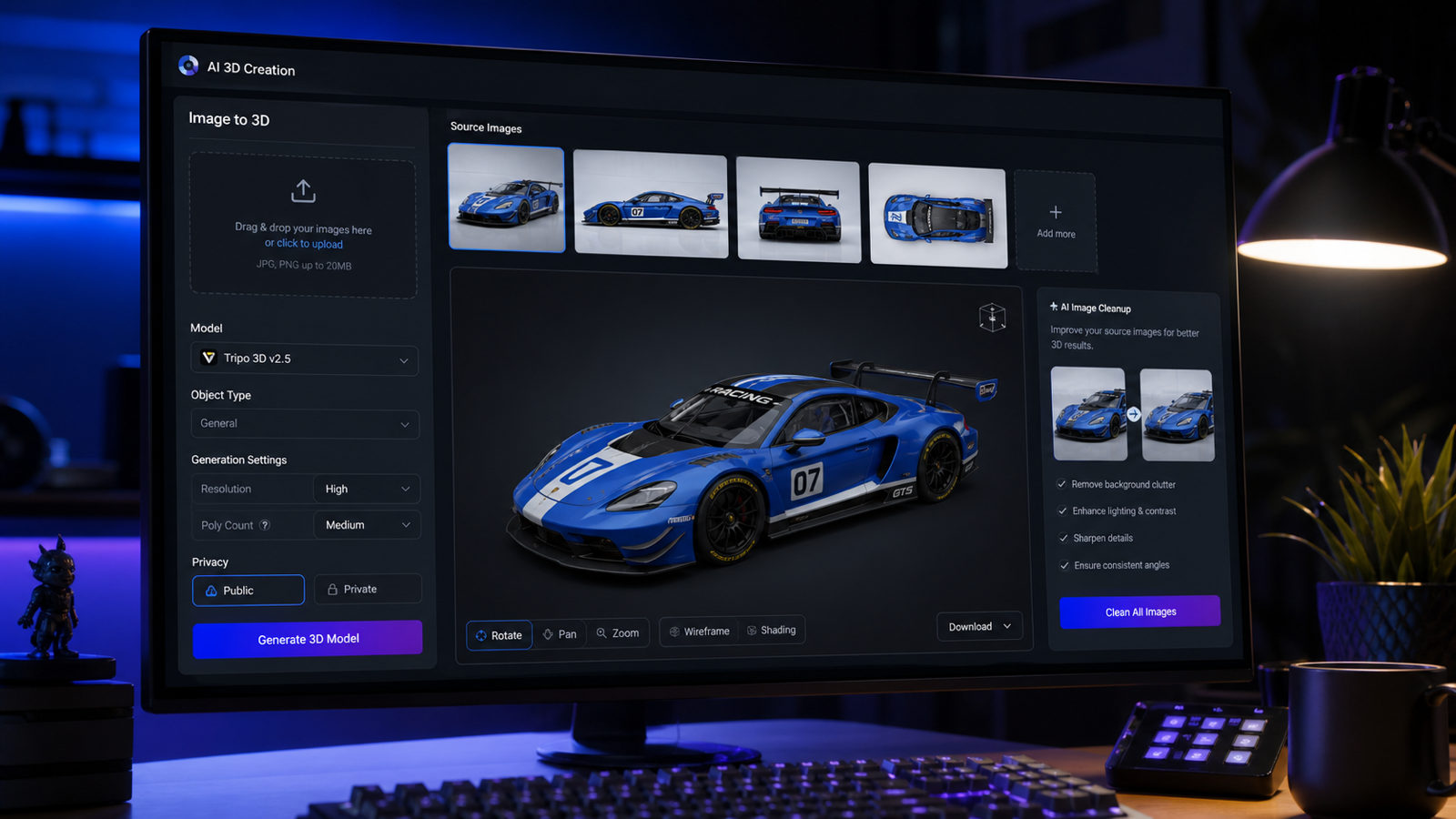
Second, you can open the Image to 3D tool page directly. This is the cleaner route when you already know you want to upload a source image and generate a 3D draft. On the Image to 3D page, the visible workflow includes an Image to 3D AI upload panel, example image tiles, a drag-or-click upload area, an AI Generation option, a Public toggle, a Generate button, credit-cost information, and a 3D creations history area.
The Tripo 3D 2.5 model page is useful if you want to confirm the model context first. In the tool interface, look for the Tripo 3D v2.5 model selector, the Panel button, and the large preview viewer where generated models can be inspected.
Creator tip: if you are still exploring ideas, begin with example tiles or simple test images. If you are preparing a commercial asset, start with a controlled product image and keep a record of the source file, prompt, generation settings, and final usage rights.

Step-by-Step Image to 3D Workflow on HeyDream AI
Here is a practical workflow for turning one image into a 3D model draft with Tripo 3D 2.5 on HeyDream:
- Open HeyDream AI and choose the 3D AI tab, or go directly to the Image to 3D page.
- Select or confirm Tripo 3D v2.5 in the model selector.
- Upload a clean object image through the drag-or-click upload area.
- Check whether the tool is set to the right generation mode, such as AI Generation.
- Review the Public toggle before submitting, especially for private products or client assets.
- Check the visible credit cost before generating.
- Click Generate and wait for the model draft.
- Inspect the result in the large 3D preview viewer.
- Use the preview control buttons to rotate, zoom, and review the object from multiple angles.
- Compare the result with your source image and save useful outputs to your 3D creations history.
The most important step is not the Generate button. It is the review stage. A model can look good from the front and still have weak back-side geometry, stretched texture areas, strange proportions, or missing details that only appear when you rotate the viewer.
For product teams and marketers, this workflow is best used as a fast validation loop: upload a clean reference, generate a draft, inspect the object, refine the source image, then regenerate if needed.

Prepare the Source Image Before 3D Generation
The quality of your source image has a major effect on the 3D result. A clear single-object image gives the model stronger information about silhouette, proportions, material, and visible details. A cluttered image can make the AI guess where the object ends and where the background begins.
Before using Tripo 3D, prepare your image with one of these HeyDream tools:
- Use the AI image generator to create a clean reference image from a prompt.
- Use the image to image AI tool to adjust an existing object image before 3D generation.
- Use the Image to Prompt tool to describe a reference image and turn it into a clearer generation prompt.
- Use the Free Background Remover when the object is good but the background is distracting.
A strong image-to-3D source usually has a centered object, plain background, soft lighting, visible edges, minimal shadows, no cropped parts, and no readable text. A three-quarter view often works better than a flat front view because it gives the model more shape information.
Avoid source images with hands covering the object, extreme perspective, heavy reflections, complex transparent materials, tiny wires, blurry edges, busy props, real logos you do not have rights to use, or copyrighted product designs.

Reusable Source Image and Cleanup Prompt Formulas
Use this formula when you want HeyDream to create a clean reference image before generating a 3D draft:
Create a clean reference image for image-to-3D generation. Subject: [object/product/prop]. View: [front view / three-quarter view / side view]. Background: plain light or neutral background. Lighting: soft studio lighting. Details: clear silhouette, visible edges, realistic materials, no heavy shadows, no clutter, no cropped parts, no text, no watermark. Keep the object centered and fully visible.
Use this formula when you already have an uploaded image but need to clean it before 3D generation:
Improve this uploaded image for 3D model generation. Preserve the object shape, proportions, color, and key details. Remove cluttered background, improve lighting, sharpen edges, make the object fully visible, reduce shadows, and keep a clean neutral background. Do not change the object identity or add new parts.
These formulas work because they tell the AI what to preserve and what to remove. For image-to-3D, that matters more than dramatic art direction. The goal is not the prettiest image. The goal is the clearest object reference.
If you are building a repeatable workflow, test the same object in three source views: front view, side view, and three-quarter view. Then generate models from each version and compare which one gives the cleanest shape.

12 Copy-to-Use Prompts for Tripo 3D Model AI Creation
Use these prompts in HeyDream before sending the best source image into the Image to 3D workflow.
-
Create a clean front-facing product reference image of a futuristic toy race car, centered on a white background, clear silhouette, visible wheels, smooth blue plastic body, soft studio lighting, no text, no watermark, suitable for image-to-3D generation.
-
Create a three-quarter view image of a leather travel backpack, standing upright, all straps visible, zipper pockets clear, dark brown leather texture, neutral background, soft shadows, centered composition, suitable for 3D model creation.
-
Create a clean product reference image of a ceramic cat-shaped coffee mug, front three-quarter view, glossy white ceramic, curved tail handle visible, plain light background, sharp edges, soft studio lighting, no brand text.
-
Create a simple game prop reference image of a stylized treasure chest, centered object, front three-quarter view, chunky wooden body, metal corner guards, gemstone lock, clean neutral background, clear silhouette, suitable for AI 3D conversion.
-
Create a clean e-commerce-style reference image of a modern desk lamp, slim black metal arm, circular base, lamp head visible, front view, neutral studio lighting, plain background, all parts fully visible.
-
Create a product reference image of a sneaker, side view, full shoe visible, sharp sole and upper details, realistic mesh and rubber texture, clean white background, no logos, suitable for image-to-3D model generation.
-
Create a clear 3D-reference image of a plush teddy bear sitting upright, full body visible, beige fabric texture, rounded silhouette, plain light background, soft studio lighting, no cropped limbs.
-
Create a toy robot reference image, front-facing view, rounded body, small arms, wheel base, screen face without readable text, clean white background, high contrast edges, suitable for converting into a 3D asset.
-
Improve this product image for image-to-3D generation. Keep the object exactly the same, remove background clutter, increase edge clarity, brighten the object evenly, reduce harsh shadows, and place it on a plain neutral background.
-
Convert this messy product photo into a clean 3D reference image. Preserve the product shape, color, and material. Remove extra objects, center the subject, make the full object visible, and create soft studio lighting.
-
Create a clean reference image of a stylized cartoon airplane toy, front three-quarter view, full wings visible, rounded toy proportions, bright but simple colors, plain background, suitable for Tripo 3D generation.
-
Create a reference image of a small sofa for 3D modeling, front three-quarter view, mint green fabric, visible legs and cushions, clean studio background, clear edges, realistic scale, no distracting decorations.
Prompting tip: use fewer objects per image. If your source image includes a product plus a table, cup, plant, and background decor, the 3D generator may treat everything as part of the asset.

Best Source Image Tips for Cleaner AI 3D Results
Use this checklist before you click Generate:
- Is the object fully visible, including bottom edges, handles, straps, wheels, or legs?
- Is the background plain enough that the object boundary is obvious?
- Is the object centered with enough empty space around it?
- Are key materials clear, such as metal, leather, plastic, fabric, glass, or ceramic?
- Are shadows soft instead of blocking the silhouette?
- Is the perspective understandable, preferably front three-quarter for many objects?
- Are there no real logos, watermarks, copyrighted characters, or brand assets you cannot use?
- Is the source image sharp enough to show edges and proportions?
For simple props, one clean image may be enough for a useful draft. For complex products, create several source images and test them. A backpack, lamp, sneaker, or chair can change dramatically depending on whether the model sees the side, front, straps, handles, or underside.
If your first output is weak, do not immediately blame the model. Try simplifying the source image, removing background clutter, increasing edge clarity, and reducing perspective distortion.

Practical Use Cases for Creators, Designers, and Marketers
HeyDream image-to-3D is most useful when speed matters more than final mesh perfection. Common use cases include:
- Product mockups: test how a product concept might look as a rotating 3D object.
- E-commerce planning: explore whether a product visual can become a 3D preview.
- Game asset drafts: create early prop ideas before manual modeling.
- Social content: turn a simple object into a more dynamic visual for short-form posts.
- Marketing concepts: create 3D-style product directions for campaign planning.
- Education and hobbies: learn how source image quality affects AI 3D output.
- Client previews: show a rough object direction before commissioning polished 3D work.
For e-commerce and product teams, Tripo 3D drafts can be helpful during ideation, but final use needs careful review. Product shape, material accuracy, scale, texture fidelity, and hidden-side details matter if customers will rely on the model for purchase decisions.
For game asset beginners, the model can be a starting point, but you may still need retopology, UV cleanup, texture edits, scale normalization, collider setup, LOD creation, and engine-specific optimization.

Quality Checklist: What to Inspect After Generation
After generating a model, rotate it slowly in the preview viewer and check it from all sides. A front-facing preview can hide important problems.
Inspect these areas before using the asset:
- Silhouette: does the overall shape match the source image?
- Proportions: are handles, legs, wheels, openings, and accessories scaled correctly?
- Back side: did the AI invent plausible back details, or are they unusable?
- Texture: are materials stretched, blurry, repeated, or inconsistent?
- Topology: would the mesh need cleanup before animation or real-time use?
- UVs: are textures organized enough for editing?
- Rigging readiness: would this object deform or move cleanly if animated?
- 3D printing tolerance: are thin parts, holes, and supports physically plausible?
- Export formats: does the platform provide the format your next tool requires?
- Rights and privacy: are you allowed to use the source and output commercially?
AI image-to-3D tools are valuable because they compress early exploration time. They are risky when treated as automatic final-asset pipelines. For professional production, plan on manual inspection and cleanup.

Recommended HeyDream Workflow Before Manual 3D Cleanup
A practical production-minded workflow looks like this:
- Create or clean the source image with HeyDream AI Image Generator, Image to Image, Image to Prompt, or Free Background Remover.
- Upload the clean reference into the Image to 3D tool.
- Generate a Tripo 3D 2.5 draft.
- Review the model in the preview viewer from front, side, back, top, and close-up angles.
- Save useful results and reject drafts with major shape errors.
- Move promising models into manual 3D tools for cleanup, scale checks, topology, UVs, materials, rigging, or export preparation.
This workflow is useful because it separates idea generation from production finishing. HeyDream helps you quickly discover which images and object concepts are worth pursuing. Manual 3D tools help you make the asset dependable.
Before publishing, selling, printing, animating, or using a generated model in a client project, verify commercial usage terms, source-image rights, copyrighted design safety, mesh quality, export options, and any public/private settings that affect confidentiality.

Related Articles and People Also Read
Related Articles:
- Image to 3D on HeyDream AI: A Practical Tripo 3D Step-by-Step Guide
- HeyDream AI Website Updates: A New Creative Launchpad for Images, Videos, and 3D
- HeyDream AI Image Generator Guide: Best Models for Text-to-Image and Image-to-Image
- How to Turn Images Into Better AI Prompts with HeyDream AI
- How to Use HeyDream AI's Free Background Remover: Upload & It's Done
- How to Use HeyDream AI's Text-to-Video Generator: Model Comparison, Prompting Tips, and Workflows
People Also Read:
- Tripo 3D AI Review: What It's Great At and Not
- Meshy AI vs Tripo 3D AI Review: Which AI 3D Generator Fits Your Workflow?
- Can AI Image-to-3D Tools Really Create Usable 3D Models From Photos in 2026?
- Best AI 3D Model Generator in April 2026? A Review of Meshy 6
- Seed 3D Model Generation Guide: A Simpler Alternative for Real Users
- OpenArt World Review: A Practical Look at This New AI 3D World Generator

FAQ
Can I turn any image into a 3D model?
You can try many images, but clean object references usually work best. Cropped, blurry, cluttered, reflective, or multi-object images often produce weaker 3D drafts.
Is Tripo 3D on HeyDream good for beginners?
Yes, it is approachable for beginners because the browser workflow is simple: upload an image, generate, preview, and review. The harder part is learning how to judge mesh quality and prepare better source images.
Should I use a front view or three-quarter view?
For many products and props, a three-quarter view gives the model more shape information. A front view can work for symmetrical objects, but it may give less information about depth.
Can I use AI-generated images as source images?
Yes, you can create source images with HeyDream's AI image tools, then use the best result for Image to 3D. Keep the object simple, centered, fully visible, and free from confusing background elements.
Are generated 3D models production-ready?
Sometimes they may be useful as-is for previews, but you should assume professional use requires review and cleanup. Check topology, textures, proportions, UVs, export format, scale, and commercial terms.

Conclusion: Use HeyDream AI for Fast 3D Drafts, Then Review Carefully
HeyDream AI makes Tripo 3D image-to-3D generation accessible for creators who want quick 3D model drafts from images. The workflow is simple enough for beginners: choose 3D AI or open Image to 3D, upload a clean source image, generate with Tripo 3D v2.5, inspect the model, then refine or move into manual cleanup.
The best results start before generation. Use HeyDream's AI Image Generator, Image to Image tool, Image to Prompt tool, or Free Background Remover to prepare a clean object reference with clear silhouette, soft lighting, and minimal background clutter.
For concept assets, product mockups, social previews, and early 3D exploration, HeyDream is a practical place to start. For paid client work, e-commerce accuracy, game production, animation, or 3D printing, treat the output as a draft and verify mesh quality, textures, rights, and export requirements before publishing.